
ISSUE
A BDR iPad has been stolen, is missing or the staff are unable to locate it.
STOLEN iPad: What should the licensee do?
The Licensees should report it straightaway to the local authorities and either to Scantek or LGIRS.
What happens once the iPad has been reported to Scantek?
1. CONFIRM
Get confirmation from the Licensee that the device has been lost. Preferably via email so that there is a paper-trail.
2. DISABLE ACCESS TO THE DEVICE
- Disable or change the password on the device.
- If the venue has multiple iPads:
- Login to Keycloak (BDR) as admin
- Select Users from the menu
- Locate the user account for the reporting Licensee/venue.
- Select the users extended menu.
- Click 'View in Keycloak'
- Under 'Required User Actions' (3rd option down) - Select 'Update Password' then click 'Save'
- This will prompt the Licensee to change the password when next logging in and will use that password from then on.
- If the venue has multiple iPads:
-
-
- Login to Admin (BDR) Portal as a Tenancy Admin.
- Under User Management > Locate the venue account.
- Select the user and toggle the Enabled button (so it is grey). The account can be reenabled upon sending out a replacement device.
-
-
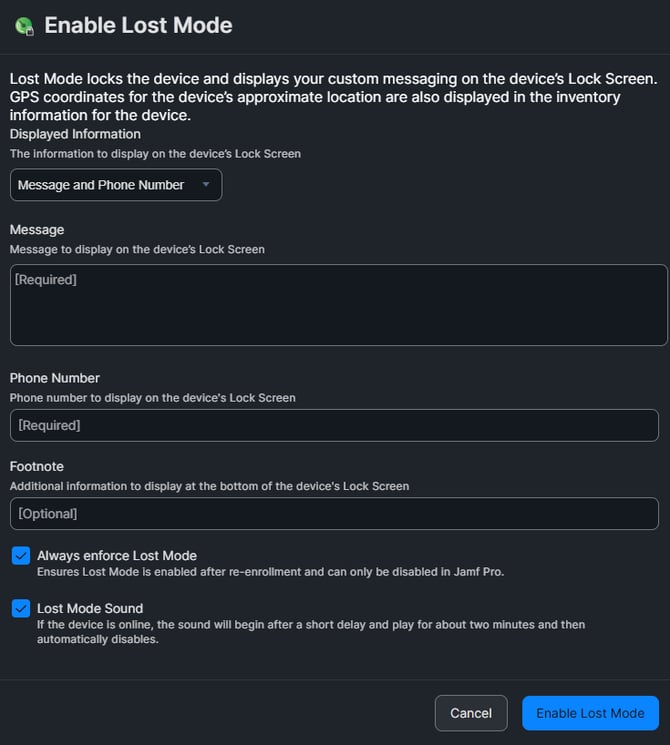
Enable Lost Mode on the iPad.
- Go to JAMF
- From the menu, select Devices > Search Inventory > All iPads > View (bottom left)
- Search for the missing or lost iPad
- Under the Management (1) tab > select Management Commands
- Select Enable Lost Mode (2)

- Fill in the form:
- Message: "The device is the property of Scantek Solutions. Please contact the provided number to return the device to its intended recipient." - or something like that.
- Phone Number: 1300 552 106 (option 4)
- Select 'Always enforce Lost Mode and 'Lost Mode Sound'
3. NOTIFY
Email the Client at bdr@lgirs.wa.gov.au with the following:
- Store name
- iPad Serial Number
- Status: (Lost/Missing/Damaged etc)
- Replacement status: (in transit, delivered, being prepared etc)
- For Lost/Missing iPads - Query whether a replacement should be provided. Upon approval, arrange a replacement.
4. UPDATE
- HubSpot:
- Set the pipeline stage for the device to 'Missing' and leave it assigned to the venue.
- Add a summary note on the device page (this allows us to quickly report to the Client if needed)
- Status: Missing/Lost
- Reported Missing:
- Reporter: Who reported it missing?
- Replacement: Was a replacement provided?
NOTE: BDR fleet has a limited number of iPads allocated.
RELEVANT ARTICLES
- BDR: Escalating to DLGSC or Technical Team
- BDR (iPad): Setting up the devices
- BDR iPad specific issues/troubleshooting
- BDR: Unable to contact Licensee (venue)
- BDR: Tickets Maintenance
- How to Enable Lost Mode on an iPad