
SYMPTOMS
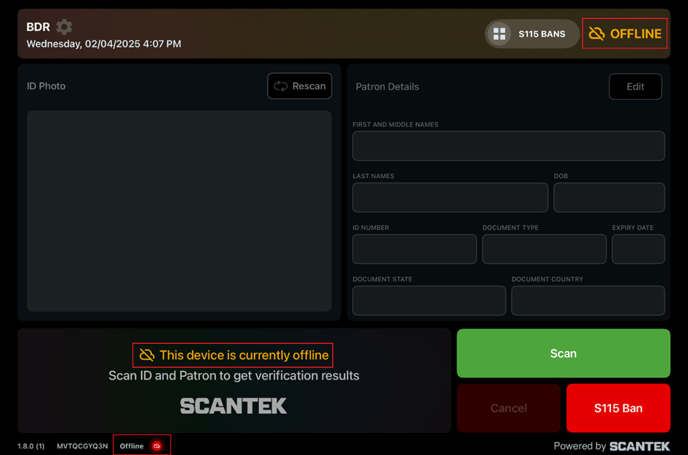
- "Offline" messages across the BDR App (refer to image below).
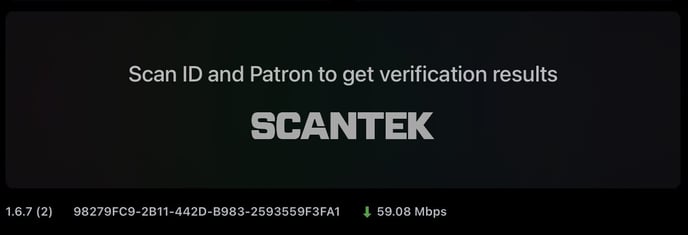
- Slow data transfer speeds (can be found at the bottom of the BDR App - refer to second image below).
- Wi-Fi or Cellular icons showing no signal or a disconnected state. (iPad: top right corner)
- BDR App is slow to display the scan results.
IMPORTANT
Licensees must connect the BDR iPads to their Wi-Fi network. The cellular data is a backup and not intended for primary use.
The instructions to connect to the Wi-Fi can be found in the user documentation, accessible within the BDR App or on the BDR website.
BASIC TROUBLESHOOTING
- Confirm the Issue
- Wi-Fi: Ask the venue staff if the issue is affecting other devices on the same network.
- What is the network speed? Can be found at the bottom of the BDR App.
- Reboot the iPad
- Press and hold the top volume button + top button until the power off slider appears.
- Drag the slider, then wait for the iPad to turn off.
- Press and hold the top button again to turn the iPad back on.
- Toggle Network Settings
- Wi-Fi: Go to Settings > Wi-Fi and toggle Wi-Fi OFF then ON.
- Cellular: Go to Settings > Mobile Data and toggle it OFF then ON.
- Physical Environment
- Wi-Fi: Ensure the iPad is within range of a known good Wi-Fi signal. Walls, large objects, and other electronics can interfere with signal strength.
- Cellular: Check for good signal strength indicators. E.g., network speeds are displayed at the bottom of the BDR App (see image in step 1).
Wi-Fi Specific Issues
- Forget Network and Rejoin
- Go to Settings > Wi-Fi.
- Tap the "(i)" icon next to the problematic Wi-Fi network.
- Tap Forget This Network, then confirm.
- Re-select the network and re-enter the password.
- Check Wi-Fi Router or Access Point (AP)
- Confirm the router or AP is powered on, and its indicator lights are normal.
- If safe and accessible, briefly power cycle (unplug for 30 seconds, then plug back in) the router or AP.
- Ensure other devices can connect to the same Wi-Fi network.
- Test on Different Wi-Fi Network
- If possible, try connecting the BDR iPad to a different known good Wi-Fi network (e.g., mobile hotspot) to determine if the issue is with the iPad or the primary network.
NOTE
Digital ID validation requires an internet connection.
GENERAL KNOWLEDGE
To ensure uninterrupted scanning, the BDR App can scan documents and make TAMS purchases offline when the iPad doesn't have a stable or active internet connection.
When the BDR iPad is operating offline, clear messaging is displayed across the BDR App to notify the user of the network loss.
Once the BDR iPad reconnects to the network, the BDR App will automatically sync the offline scan data with the server. The BDR App cannot load purchases to or from other BDR iPads when offline.
IMPORTANT
Venues must avoid selling or supplying liquor to customers that will exceed their daily limits.
Information to Gather Before Escalating
- iPad serial number
- All troubleshooting steps performed and their outcomes.
- Whether the issue affects Wi-Fi, Cellular, or both.
- Whether the issue is specific to a location/network or occurs everywhere.
- Any recent changes to the network environment or iPad settings.
- Error messages displayed on the iPad.
Related Articles