
IMPORTANT
Confirm with the caller that they wish to reset the passcode (PIN) for their iPad and not the BDR App login details.
TIP
If the request is from a known Licensee contact, the Client does not need to approve the request.
The passcodes can be reset upon request of the Licensee - the passcode code requirement is that it must be a 6-digit code.
- Go to https://scantek.jamfcloud.com/ (limited access)
- From the menu, select Devices > Search Inventory > click View
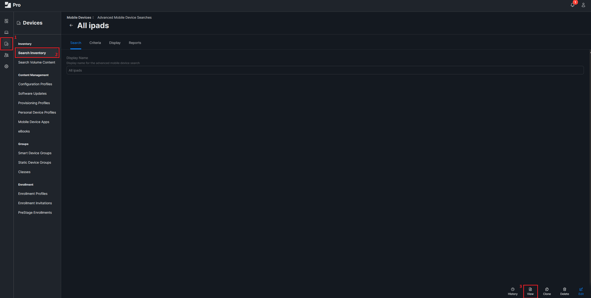
- Locate and select the iPad. Then click the Management tab > from the Management Commands > click Clear Passcode.

4. The iPad will prompt the user to set a passcode.
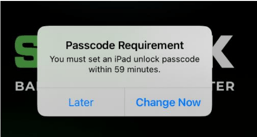
To set a passcode:
-
- Unlock the iPad.
- A Passcode Requirement prompt will appear.
- Select Change Now.
- Enter a 6-digits code, confirm, and tap Set Passcode.
ATTENTION
The BDR iPad will enforce a passcode and cannot be used until it is set.
These instructions can be found in the user manual, which are accessible within the BDR App or on the LGIRS website.
-
- BDR Mobile Application - Quick User Guide
- BDR Mobile Application - User Manual
| Change | Date | Editor |
| Article created | 15/03/2024 | Sara |
| Minor improvements to formatting. | 25/08/2025 | Sara |
| Clarification that it is the device "PIN" | 24/06/2026 | Sara |