
Contents
New Tickets
- Incoming Emails
- Tickets are automatically created, simply click the email subject line to open the ticket.
- Incoming calls
- Go into Calls in HubSpot and create a ticket for that call. This will ensure the call is immediately linked to the ticket.
.png?width=670&height=261&name=image%20(2).png)
TIP
If you don't see these properties, customise your view to add them.
Maintaining Existing Tickets
NOTE
Upon creating a ticket, fill in the properties as outlined below.
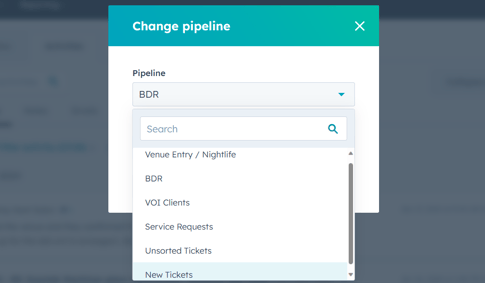
PIPELINE: Select BDR, then select the ticket status.
| Status | Description |
| New | Ticket has come in but is yet to be looked at. |
| Open | Ticket needs to be actioned. E.g., the Contact has responded. |
| Pending | Awaiting response from the end user. Commonly used when an email is sent; once a response is received, the status will automatically update to Open. |
| On Hold |
You're unable to proceed further. Select the appropriate On Hold status.
|
| Closed | The issue has been resolved and confirmed with the contact. No further action required. |
TIP
Verify the ticket status each time you make an update.
| Description |
When a ticket is generated from an email, its content will be automatically included. If you are creating a ticket from an incoming call, be sure to provide the following information in the description to ensure a complete summary:
|
| Ticket Owner | If you took the call, assign the ticket to yourself. Otherwise, assign it to the most appropriate person. |
| Priority |
|
| BDR Region |
Refer to the region on the venue's Company. TIP hover over the associated company, click 'Preview' |
| BDR User Type |
The person who called, emailed or that you are having to liaise with as per Client request.
|
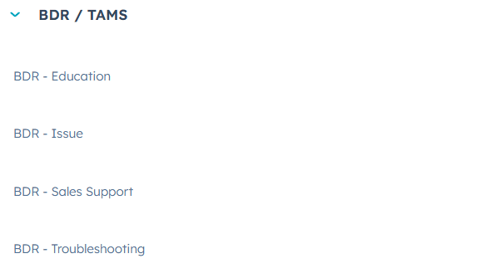
| BDR - Education | Where a Licensee was unsure how to do something and required training ('education') on the system. |
| BDR - Issue | Where the device requires a replacement. Often selected in conjunction with BDR - Troubleshooting. |
| BDR - Sales Support | Where the requests are initiated by the Client. Select as appropriate. |
| BDR - Troubleshooting | The issue reported by the caller which was either resolved remotely or required a replacement in which case select a BDR - Issue. |
NOTE
If you don't see the above section, ensure you have selected the correct Pipeline; otherwise, add it to your View.
SECTION: Logistics
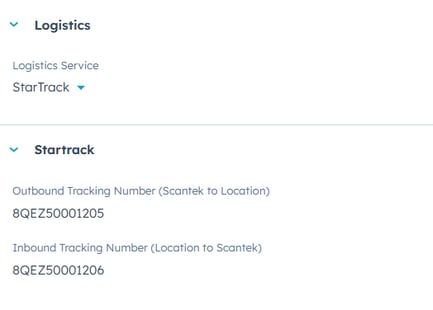
- Select the logistics service:
- Startrack
- Courier (local courier, such as Fasta)
- Scantek Hand Delivery
- Where Startrack is selected, provide the tracking number(s).
SECTION: Contacts
Associate the appropriate contacts for this venue. Select an existing contact, or update or add as needed.
SECTION: Companies
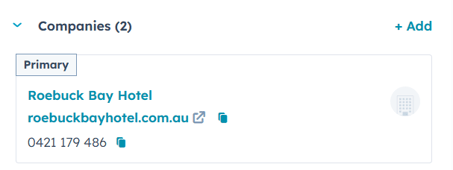
Associate the venue to the ticket. Click +Add and search for the company name. E.g., Roebuck Bay Hotel
SECTION: Assets
Associate the relevant assets.-
- Click +Add
- Search for the serial number (s) provided by the caller.
- Click Next.
- Click +Add association label
- Select an appropriate label.
-
- Hover over the asset
- Select More > Edit Associate Label
- Select appropriate label and click 'Update'.
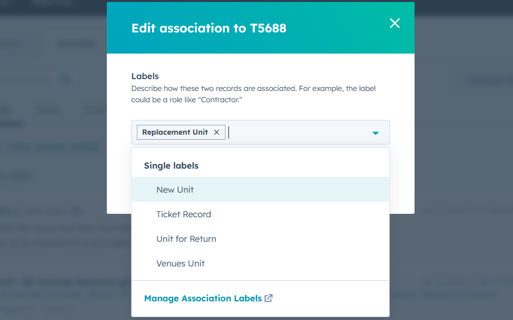
|
New Unit |
Use this where a venue is getting an additional iPad, increasing the total number of devices onsite; or if it's a new venue. Only the Client can approve additional units. |
|
Ticket Record |
The scanner required troubleshooting but did not need to be replaced. E.g., iPad SCTK_BDR_A1B2C3D4 was not connected to the Wi-Fi. |
|
Unit for Return |
The venue's faulty unit. In reference to the CRM, this is the Servicing unit. |
|
Replacement Unit |
Replacement for the faulty scanner. In reference to the CRM, this is the Support/Loan unit. |
|
Venues Unit |
Same as Ticket Record. (above), the device did not need replacing. |
Update the Asset Pipeline Stage.
-
- Click the Assets drop-down.
- Hover over the asset
- Select Preview
- Click Asset pipeline stage dropdown
- Select appropriate label
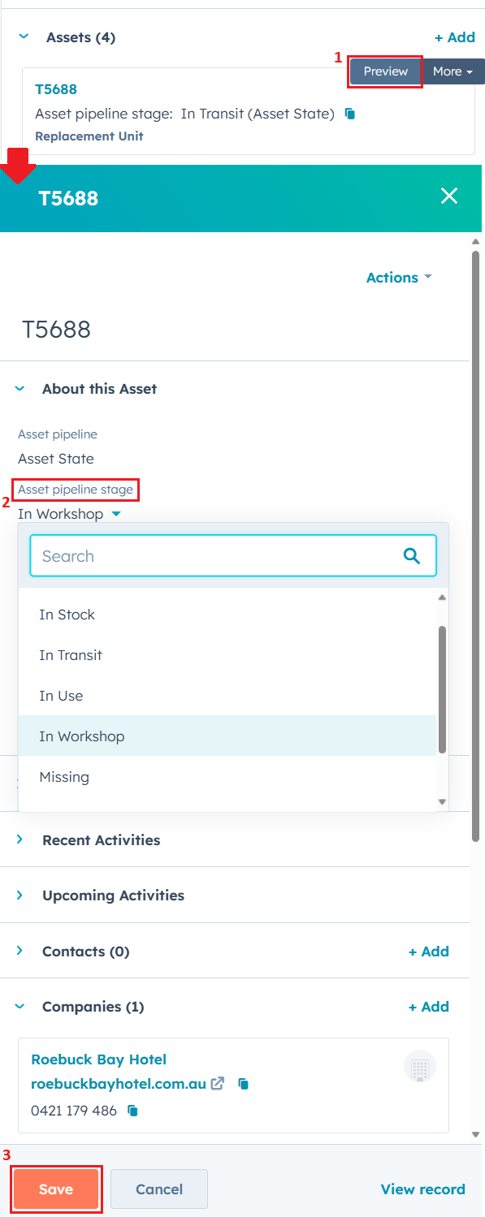
| STATUS | DESCRIPTION |
| Reserved | Spare iPad within the BDR fleet. |
| In Stock | The BDR iPad is unusable (faulty or damaged) but still part of the BDR fleet. |
| In Transit | The device is on its way to, or being returned from, a venue. |
| In Use | The iPad has been confirmed to be onsite (delivered). |
| In Workshop | The iPad is being assessed for damage or being setup to go out. |
| Missing |
The iPad has gone missing whilst onsite or in transit. Only applicable to iPads within the BDR fleet. 👉Notify the Client. Snippet: BDR: Missing iPad |
| Retired |
Decommissioned. The iPad is no longer part of the BDR fleet 👉 Add a note to the asset to summarise the reason. |
| Internal / Staff Use |
The device is owned by Scantek and not part of the Client's fleet. |
Associate the asset to a company.
- Option One
- In the ticket, select Preview on an associated asset.
- Under section Companies, click +add (existing Company).
- Option Two
-
- Go to Contacts > Assets
- Locate the asset and click Preview.
When should an asset be assigned to a company? When the device is received at HQ or delivered to its intended destination.
SECTION: Tickets
Link all relevant tickets, especially if the venue has reported the same issue before.
SECTION: Conversations
This is recommended for tickets with an ongoing email chain from multiple staff members.-
- Go to Conversations > Inbox
- Locate the email (conversation)
- Associate the ticket to the conversation.
SECTION: Activities
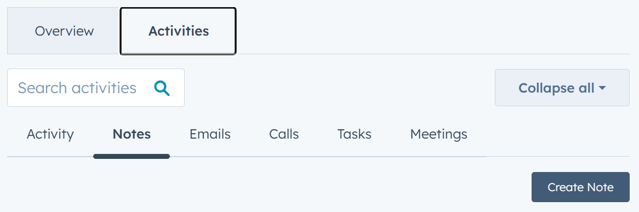
| Notes | A summary or description of recent actions taken and the next steps. |
| Emails | To ensure your team is aware of all contexts —especially if you're not available—send all emails related to a ticket from within that ticket. |
| Calls |
All calls related to a ticket must be logged and linked to it.
|
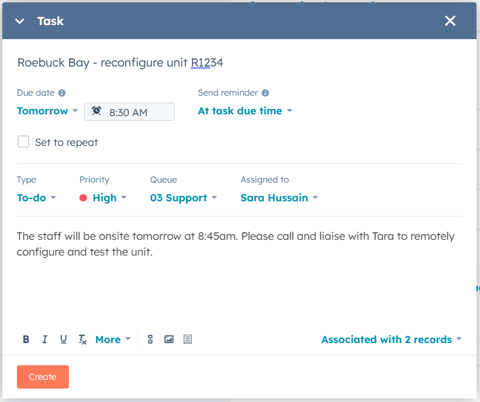
| Tasks | These steps are essential to ensure the ticket does not get missed. As long as the ticket remains open, a task must always be assigned until a resolution is reached. |
| Meetings |
Irrelevant to end-users (Licensees/venues). |
| Version | Review Date | Reviewer | Description |
|---|---|---|---|
| 2 | 19/01/2024 | SH | |
| 3 | 28/08/2025 | SH | Formatting changes and updated to align with the iPad rollout. |