Assigning a Unit to a Venue in Hubspot
Assigning the Asset against the Ticket
1. In the Hubspot Ticket, Click "+Add" in the Assets box.
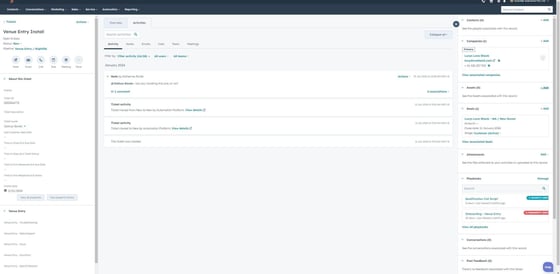
2. 1. Click "add existing"
2. In the search box, enter the Serial Number for the iPad.
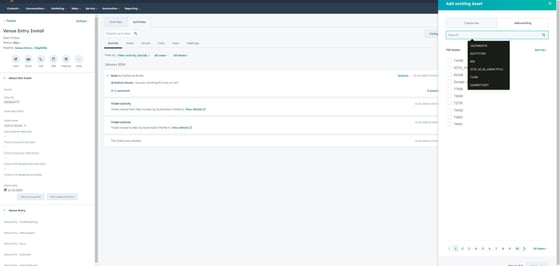
3. Click the corresponding Serial Number.
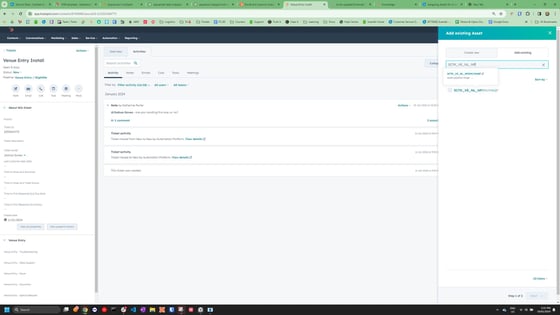
4. Click "Next"
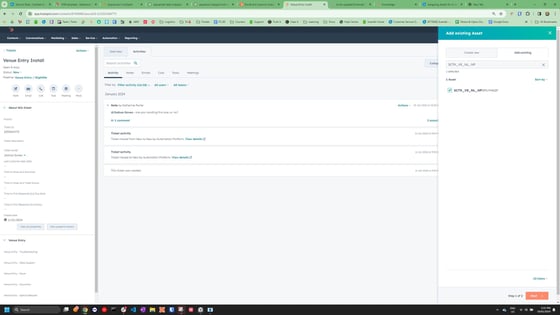
5. Click "Add Association Label"
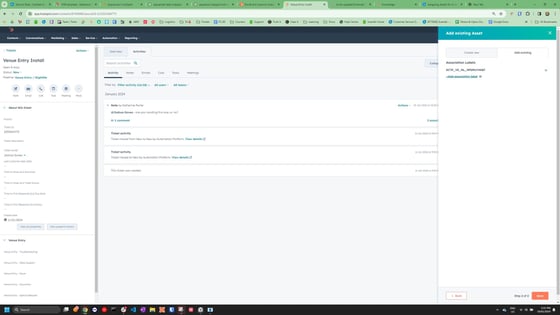
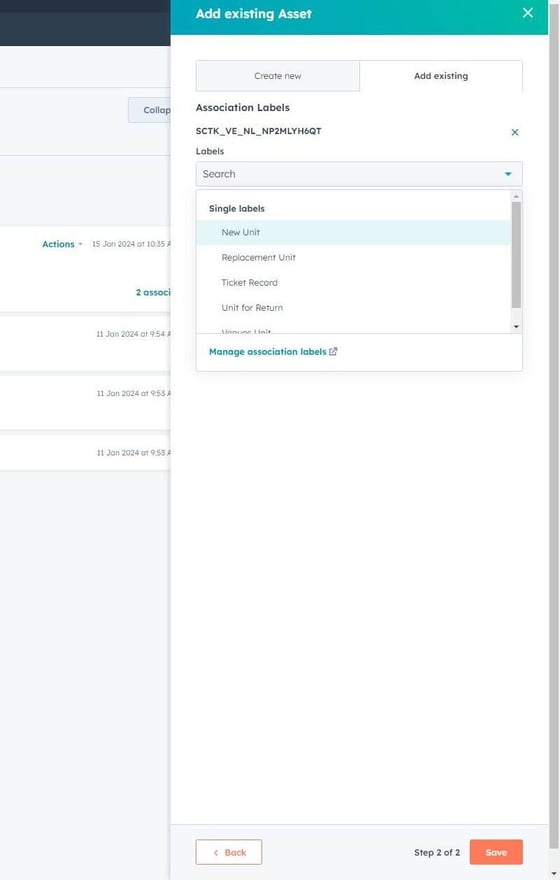
6. Select on of the Association Labels
- New Unit (this is for New Venue Installations, or if a Venue is requesting an additional Device)
- Replacement Unit (This is a unit we are sending to a Venue if their Original Unit is Faulty or Damaged. There will should be a Unit for Return as well listed on the ticket)
- Ticket Record (There might be some troubleshooting with the unit, but it is not needed to be replaced or moved)
- Unit for Return (This is a unit we are getting back from a Venue if it is Faulty or Damaged. There will usually be a Replacement Unit as well listed on the ticket)
and press Save
Assigning the Unit against the Venue
7. Click on the Asset Serial Number link to head to the Asset page.
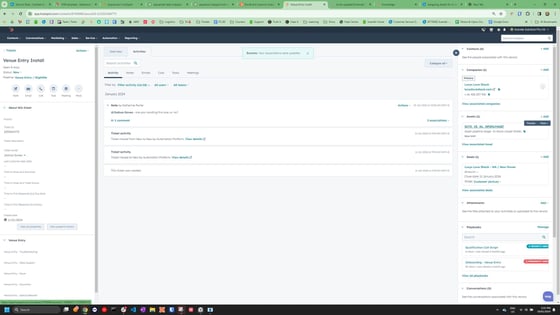
8. Change the Asset pipeline status from "In Stock" to "In Use" and press save.
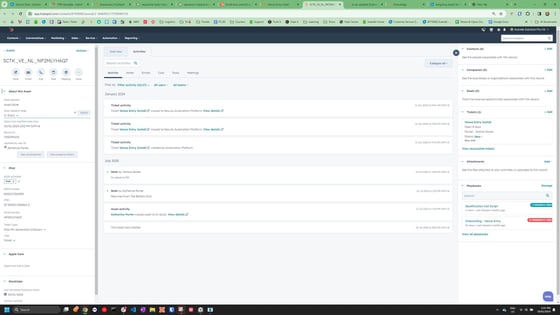
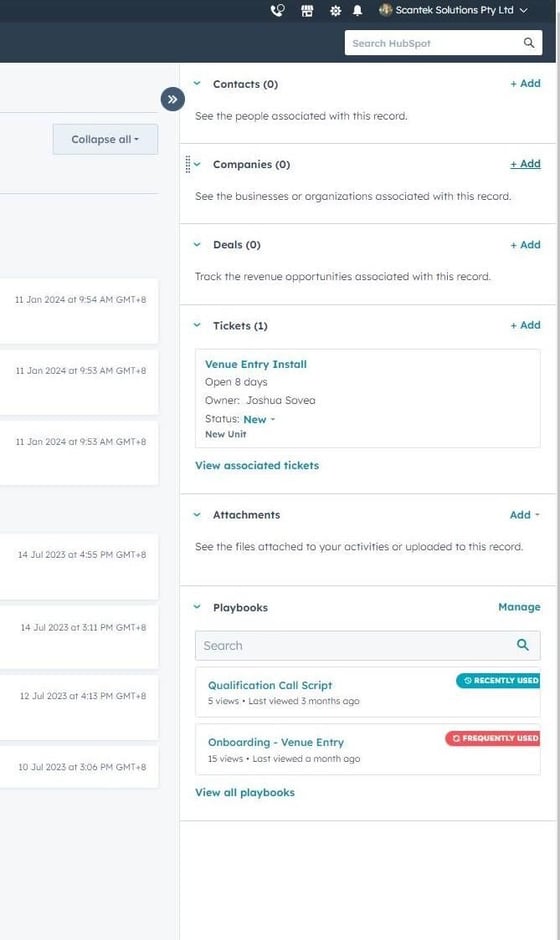
9. Under the Company Card, Click "+ Add"
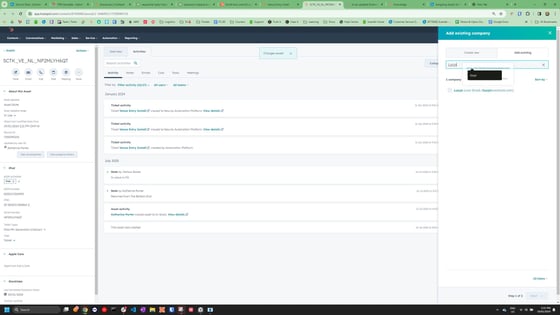
10. 1. Type in the Companies Name,
2. select the company, and
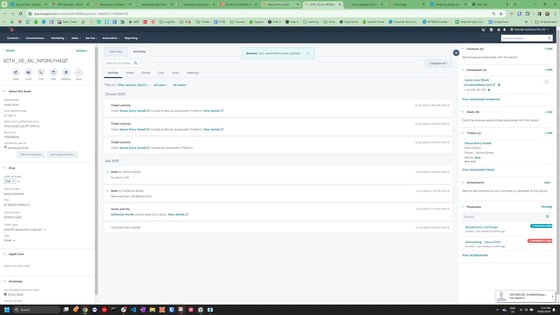
3. press save.
11. Head back to the Ticket
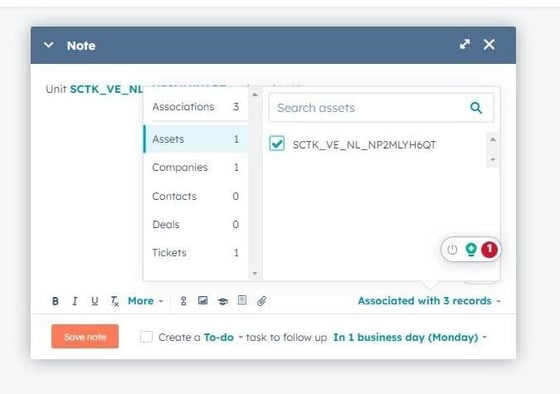
12. Click "Create Note"
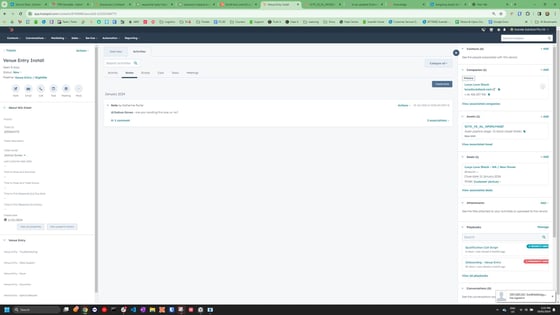
13. Type in a note such as "Unit XYZ assigned to Venue X"
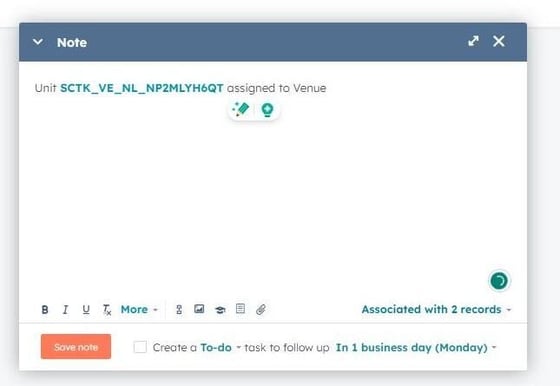
14. Make sure the Unit is associated with:
- The Asset
- The Company, and
- The Ticket
and press Save Note