
- Head to the asset list Inventory iPad Check https://app.hubspot.com/contacts/8195840/objects/2-16469521/views/17800045/list
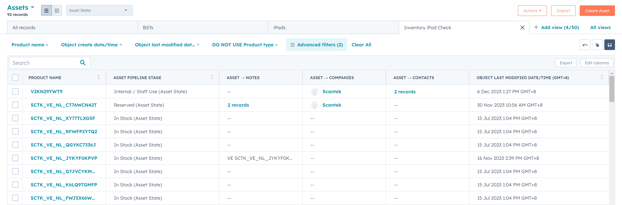
This view will show you all the iPads that are "In Stock", "Internal Use", and "Reserved".
It's best to work with the Object Last Modified in Accending order. Once one gets edited, it will move to the back of the queue. - Check the Stock in the Locked Cupboard
- Take an iPad from the locked cupboard and turn it on (you may need to give it some juice first)
- Head to Settings > General > About. Here, you will be able to see the serial number.
- Find the Serial Number in the Inventory iPad Checklist. You can do this by pressing CTRL + F and entering the serial Number.
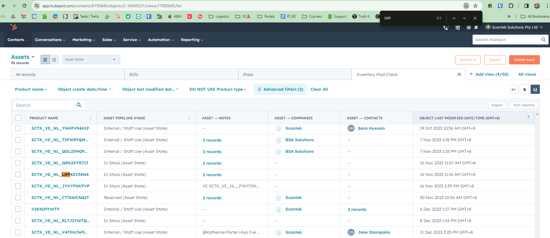
If the serial number doesn't appear, follow the steps here: [insert] - Check the Status of the iPad.
- In Stock - These should not have a company listed against them. If a company is present, this could mean that the unit was not correctly put back into stock.

- Reserved - This is an iPad reserved for a specific Venue. If this is the second stocktake in a row that this iPad has come up that it is reserved for a Venue, check in with the Business Development Team to see if it can be placed back to an "In stock" status and the company removed.
If no Company or Contact is listed against a "Reserved" iPad, return it to the "In Stock" status.
- In Stock - These should not have a company listed against them. If a company is present, this could mean that the unit was not correctly put back into stock.
-
-
- Staff Use - These iPads should not be in the Locked cupboard. Check with the Staff member if they still need the iPad.
If they do not need it. Return it to the "In Stock" status and remove any contacts.
- Staff Use - These iPads should not be in the Locked cupboard. Check with the Staff member if they still need the iPad.
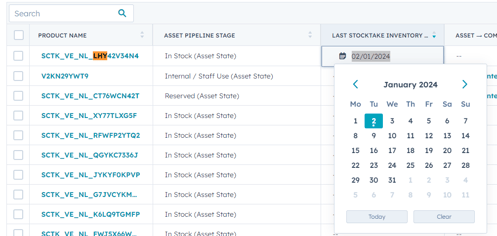
- Change the Last Stocktake Inventory date for each iPad to today. This can be done by clicking the Cell for the listed iPad.
- If the iPad still has a background that isn't Inventory, head over to Jamf to change the Profile (Instructions here:)
- This iPad has now been counted in the stock take. You can power it off, return it to the cupboard, and repeat the process with the next iPad.
-
- Check the iPads Listed for Internal / Staff Use.
- Talk to the staff member assigned to the iPad and ask them to check that they still have it.
- If they have the iPad - Change the Last Stocktake Inventory date for each iPad to today. This can be done by clicking the Cell for the listed iPad.
- If they don't have the iPad - speak with Katherine.
- Check with Tony as to what iPads he has.
- We sent Tony a batch of iPads when we launched VE Queensland. Check in with Tony to see if he can provide you with a list of iPads he has available.
Current list (as of 3/01/2023) is:
SCTK_VE_NL_R4WH3G040G
SCTK_VE_NL_QFL7NHXGV2
SCTK_VE_NL_L0D2HX09Q4
SCTK_VE_NL_TVGKGP4VYL
SCTK_VE_NL_XY77TLXG5F
SCTK_VE_NL_THXGW4V6D4
SCTK_VE_NL_LNQX9MN7V2
SCTK_VE_NL_G96P72PMG2
SCTK_VE_NL_WV1W945090
SCTK_VE_NL_QGYKC7336J
SCTK_VE_NL_YH9VT2K90F
SCTK_VE_NL_G7JVCYKMXY
SCTK_VE_NL_D77MD4N52K
SCTK_VE_NL_FNMYYHCJKP
SCTK_VE_NL_X94V336WWY
SCTK_VE_NL_X47LXTQG9K
SCTK_VE_NL_H24L34V0TY
SCTK_VE_NL_MC9P00CP9L
SCTK_VE_NL_JNHTJM2WYC - Change the Last Stocktake Inventory date for each iPad to today. This can be done by clicking the Cell for the listed iPad.
- We sent Tony a batch of iPads when we launched VE Queensland. Check in with Tony to see if he can provide you with a list of iPads he has available.
Help! The Serial Number isn't appearing!
In a
iPad