
In JAMF
- Go to JAMF Pro
- Find the device you are setting up
- From the menu, select Devices
- Then select Search Inventory
- Click All iPads
- Select "ALT+V" or click View in the bottom right
- In the search bar, type in the serial number of the iPad, e.g., YNPPV49H1F
- Click on the device name, e.g., "SCTK_VE_NL_YNPPV4H1F"
- Select Management
- Select Management Commands
- Click Unmanage Device and confirm. (Note: If you don't see this option, select Wipe Device)
- If wiping, select all options except "Return to Service during device reset"
- On the iPad > Go to Settings > search for 'Reset' and reset the device.
- If wiping, select all options except "Return to Service during device reset"
In ABM
- Go to Apple Business Manager
- From the menu, select Devices
- Search for the iPad by serial number and select it
- Click on the ellipsis and select "Release from Organisation"
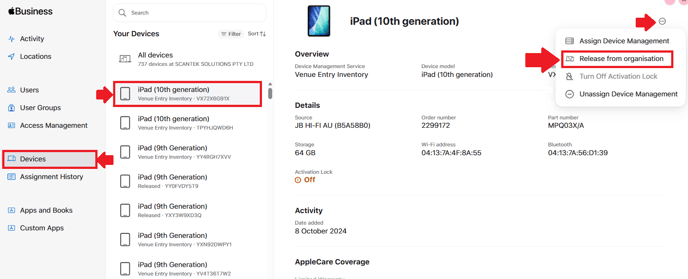
This ensures the iPad is not automatically added back to the Scantek organisation.
On the iPad
- Power on the iPad
- Once it grabs the command from JAMF, it should begin the reset process

- Upon completion, you will see the "Hello" indicating

If the iPad doesn't automatically do reset, you'll need to do it manually:
-
-
- Go to Settings
- Select General
- Select Transfer or Reset iPad
- Then select Erase All Content and Settings
-
RELEVANT ARTICLES