
Different Couriers
- Comet (For WA Metro Area only)
- Inbound - Location to Scantek
- Outbound - Scantek to Location
- StarTrack / Australia Post (For the rest of Australia)
Comet
Booking a Comet Courier
Made by Katherine Porter with Scribe
Alert: Alert! Only can be done for WA Metro Area.
1. Head to https://comettransport.com.au/ and click Book Job

2. Sign in using the details located in bitwarden and click "book a job"

3. Complete the "Our Details" Section.
- Booked by - This will be your name
- Reference 1 - this is the Ticket ID

From Location to Scantek
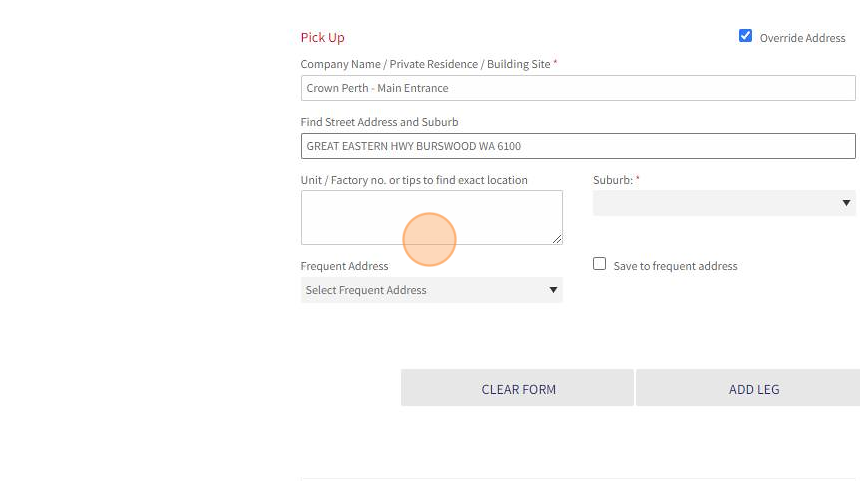
4. The pick up box will default to Scantek address.
As this item is coming from a different location to Scantek, click Override address to clear these details.

5. Enter in the:
- Venue Name / Area for collection
- Address
- Suburb
Add any additional information about the venue to the Unit/Factory no. tips to find the exact location.
The more information we can provide, the easier it is for the courier. If we don't provide enough info, we risk the courier not being able to complete the job, and costing us in time and paying for a second job.
6. In the Delivery Box, Click "Your Address" to prefill this with Scanteks information.

7. Optional pick up details. This can be filled with a Customer Service Phone number or email.
Do not include the customers details here.

Goods for Collection
8. Next, complete the Goods Section. These instructions are for small to medium items (e.g nothing beyond 10kg)

To Select the right Car Type:
- Urgency Filter - Express
- Service - EXP Courier
9. Fill in the information about the package:
- Number of items - How many things is the courier collecting?
- Total Weight of items
- Description - e.g. Computer, ipad (if being sent loose), Small Box
- Delivery Instructions - If there is someone that the courier should call, enter it here.

10. If there is a specific time that the courier should aim for the goods being collected. this can be requested in the Optional Delivery Details section.

11. Once you have checked over all the details and are satisfied - Click "BOOK JOB"

Updating the Hubspot Ticket
12. On the Left hand side of the panel in the ticket, in the Courier section - change the Logistics Service to Courier, and press Save.

13. This will allow the courier box to appear.. Filling the details:
- Courier Company
- Requested Date, and
- Pick Up Number (otherwise known as the booking number)
Then press SAVE.
This makes it easy for other people to identity the courier job details, and is required for some workflows.


14. Copy all the information about the Job from the Courier website, and paste this into a note.
StarTrack / Australia Post
- Account Name: Scantek Solutions Pty Ltd
- Account Number: 10150884
- Account Manager: Theodore Munengiwa: Theodore.Munengiwa@auspost.com.au
- Contact: 08 6253 1400
Relevant Articles
!!!IMPORTANT!!!!!
When sending large items or large quantities of items,we may be required to provide a manifest.
Please ensure that 3 or more items being sent from HQ are "Despatched" in the startrack portal.
How to despatch:
1. Log into the startrack portal ( refer to the below instructions)
2. Once you've created your connotes,Click on "shipments" on the left side menu
3. Click on "Ready to dispatch"
4. Find your recently created connote(s) and tick the box next to it, once selected, press the
"Despatch" button
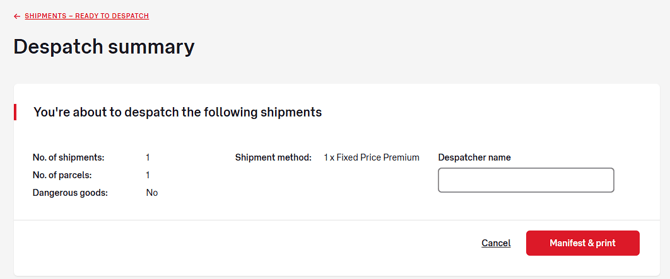
5. It will take you to a confirmation page, simply click "Manifest and print" See image below.
Note: you dont have to print this, its just part of the process. In the event we need to print the manifest, we can do that by accessing the connote in the portal and printing it.
How to Retrieve a manifest for sending items and returning items.
Shipments
1. Log into the portal
2. Click on past shipments, find your connote and click on the "APxxxxxxx" under " Manifest details next to your connote
3. Click " Reprint Manifest" then save it as a PDF if required.
Returns
1. Log into the portal
2. Click on returns, find your connote and click on the connote number on the right under "Connote"
3. Click on "Download Manifest" then save it as a PDF if required.
Access Startrack/Auspost portal
*NOTE* Currently in the process of figuring out if we can use the Connote thermal printer from our own browsers
-
Teamviewer to 'AndyStartrack'.
- Your personal teamviewer may not have other devices present, if thats the case you will need to log into teamviewer with the "info@scantek.com.au" account for team viewer.
refer to 'Bitwarden' for this -
In the teamviewer application on your computer, search for ‚ÄòMike‚Äô under ‚'Computers & Contacts'.
- Your personal teamviewer may not have other devices present, if thats the case you will need to log into teamviewer with the "info@scantek.com.au" account for team viewer.
-
Refer to 'Bitwarden' for the password to the laptop
-
Open the Chrome visit https://auspost.com.au/
a. Login is
delivery@scantek.com.au
***refer to Bitwarden for password*** Chrome should Autofill in details for now
Naming Conventions
Booking a Courier | Creating a Label
-
Determine what type of movement are you organising and click "new" at the top left.
| Type | Description | Notes |
|---|---|---|
| Shipment | Package being sent from Scantek | This will print 2 stickers (label) |
| Transfer | Move between 2 locations | e.g amtek Sydney to Amtek Melbourne |
| Return | Package returned to Perth Scantek | These will be emailed make sure it's delivery@scantek.com.au |
| Pickup | Organise a courier pickup for any (EXP) items | booking a courier to collect the package(s), choose the matching priority |
2. Fill out the appropriate information
*Please make sure if the address auto-fills that it matches in the CRM, or even better confirm with the customer as some of our contacts may not have been updated in some time.
IMPORTANT: When sending to Tony, instructions can include "ATL"
Select item/s from the drop-down under "favourite parcels"
It may be worth putting under the parcel contents "Computer" this won't ensure anything but still may receive better handling when in transit.
| VENUE ENTRY / iPAD SHIPPING As we are shipping Lithium Ion Batteries, there is a slight change Special Instructions and References Please include this under Special Instructions: UN3481 PI967 II Dangerous Goods This is okay to be ticked NO Favourite Parcels Sample - Venue Entry |
Choosing Shipping Methods
Our options are Fixed Price Premium & Express
You'll need to determine which option is more suitable and if it's more efficient to email the labels to a customer to print and we then organise a pickup.
If sending stand(s) use EXP, but call amtek first if they have any stock, as it's expensive to send from Perth.
| Fixed Price Premium (FPP) | Express (EXP) |
| This is an overnight delivery (air) | Express is the cheaper option, known as going via roads |
| Choose this for urgent situations, moving a broken LVH back & forth to scantek is best, unless the venue is in WA | Generally, choose this for returns where they have a replacement/support unit already, or supplying more stock to amtek/DLGSC |
| You don't need to book a FPP pickup from our office, Asim will contact us near the end of the day to see if we have any items for him to collect and if he needs a trolley to carry | You'll need to organise a pickup as well, as FPP couriers won't take EXP items with them |
For Express (Exp) - You will also need to book a pickup as FPP couriers won't take EXP items with them
For Shipments - We need to print out 2 labels (per item) (one label can be fine as long as it has the address and the barcode is clear and placed over any existing bar-codes)
-
Select the printer "Connote Printer ZebraDesigner"
-
Stick these labels to the package unit/LVH/swing arm or directly to the stand
-
Note down the connote (e.g. 8QEZ00001234) put it in the ticket under private note with a hyperlink to the tracking so it can be easily checked.
-
Inform the customer item is en route using the canned response telling them the connote number, put the box at the front of the office if it's being picked up today in the "OUT" trolley, and note down on the delivery sheet form.
For Returns & Transfers - Make sure the email delivery address is delivery@scantek.com.au (you'll need to ask to be added)
-
Once it's submitted, the connotes label will be emailed as an attachment shortly after
-
Attach that connote pdf to the email for the customer along with the canned response on how to box it up
-
Note down the connote (e.g. 8QEZ00001234) put it in the ticket under private note with a hyperlink to the tracking so it can be easily checked.
-
When the customer has replied ask them for a date & time window for the courier to arrive
Go ahead and book a pickup.
Printing Connotes
Make sure the paper size has connote label selected,
*Note* Remember to create a task to track the following in the ticket
If you are sending an item and receiving something back, it's worth printing the return connotes and putting them in the box with the item. This will save the customer from having to do the printing themselves and stickers are much more reliable than sticky taped paper.
Receiving package:
Nightlife units - put the unit aside of the bench for Mike (technician) to look over. The ticket will need to be updated with the return.