
IMPORTANT
The Licensee must advise the Client (LGIRS) of the change in their License - direct the Licensee to contact the BDR team regarding the return of their Scantek equipment.
1 - Confirm Items for Return
Upon confirmation and request from the Client, liaise with the venue staff to arrange for the collection of the Scantek equipment from the venue.
TIP
For easy tracking, link the ticket, emails and affected devices to one another.
Confirm what equipment the venue has:
- iPad(s) - as listed under the Company
- Apple 20W USB-C Power Adapter (per iPad)
- Apple USB-C to Lightning Cable (1m) (per iPad)
- Case or stand - as noted under the Asset. Otherwise, confirm with the Licensee when booking the pickup.
2 - Arrange Return and Tracking
Whilst we generally use Startrack for all deliveries and collections, confirm with the venue staff if booking a pickup is a viable option or it would be better to drop off package(s) to the LPO.
- Book a EXP pickup (if required). Ensure the staff have correctly and securely packaged the iPad(s).
- Set tasks to track the delivery when a pickup is expected to happen and around the time of ETA.
3 - Confirm Delivery
Upon delivery, confirm that all the expected items have been received and received in good, working conditions.
IMPORTANT
Carefully inspect all returned items for damage, general wear and tear, and ensure they are fully operational.
- If all items are delivered and working, go to Section 4.
- iPad is undamaged and operational
- Charging adapter and cable are in good condition and operational
- Stand or case are undamaged
- iPad is undamaged and operational
- If there's an issue with the delivery:
- Items are missing or inoperable: Document the details in the ticket.
-
- iPad(s): Assess the device for damage (see this article for help).
- Charger: Check if it's working. Missing > document it under the internal notes section
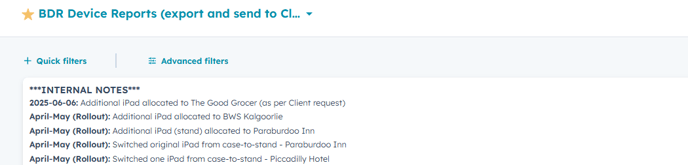
- Stand: Check if it's working and look for any notable damage.
REMINDER
Notify the Client once their request has been actioned and the Scantek equipment has successfully been returned to HQ.
4 - Updates and Closure
HubSpot- Locate the venue under Companies
- Under Assets, remove the association with returned assets
- Update ticket property "Number of iPads"
-2.png?width=425&height=607&name=image%20(4)-2.png)
- Change the iPad department to 'Unassigned Inventory"
- Locate iPad > Inventory > User and Location > Edit > Update > Save
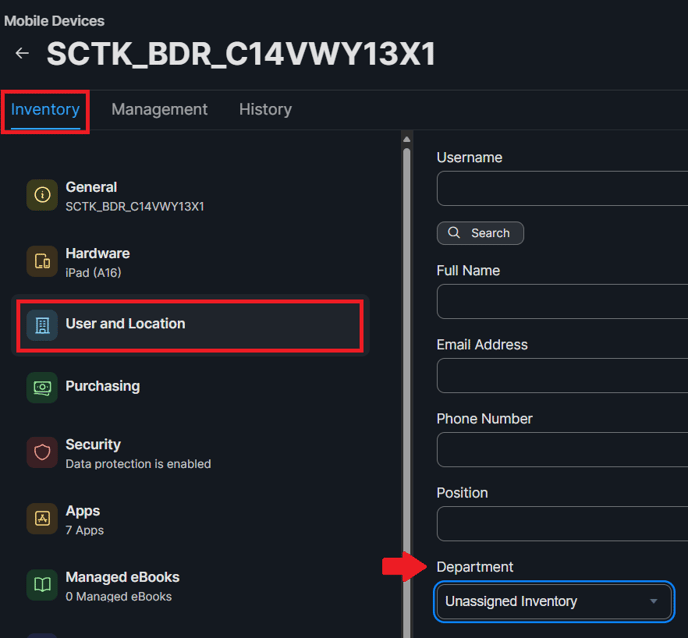
- Locate iPad > Inventory > User and Location > Edit > Update > Save
- Remove the Account ID and name
- Locate iPad > Inventory > General > Edit > Remove
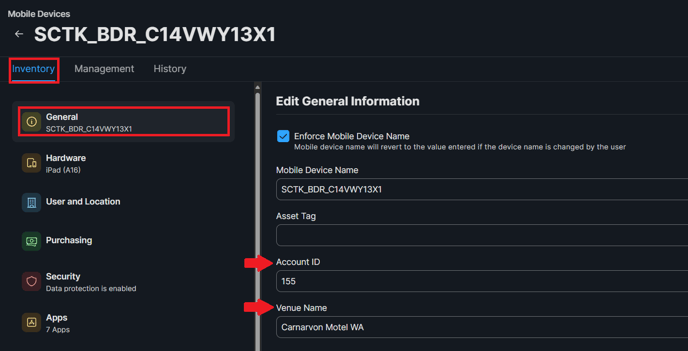
- Returned Assets
- iPad + charger - ensure the new JAMF configs are synced to the iPad. Store the iPad in the BDR Cupboard
- Case or Stand - Store it in the BDR cupboard (or in the basement if there's no space.
TIP
Before storing any returned items, give them a thorough wipe-down and clean to ensure they're in good condition and ready for future use.
RELEVANT ARTICLES