Option One: Via the App
Option Two: Via JAMF
Option One: Via the App
Option Two: Via JAMF
How to find the App Version
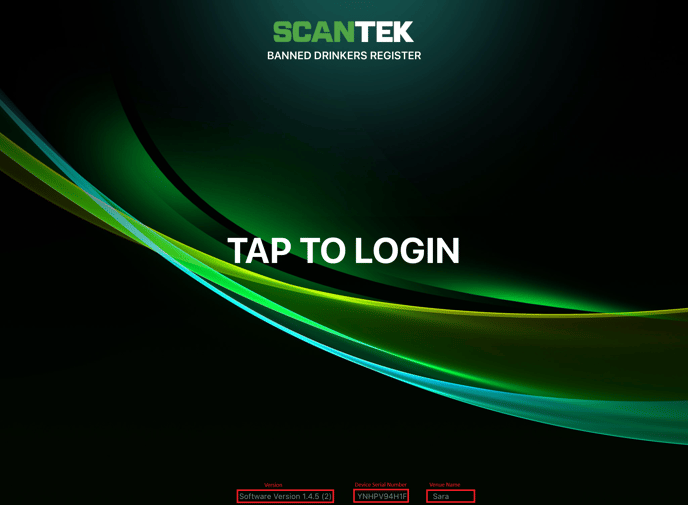
OPTION ONE: Via the App (suggested)
-
- On the iPad, open the App
- On the login screen, refer to the bottom, where the following are listed:
- App Version Number
- Device Serial Number
- Venue Name
OPTION TWO: Via JAMF (require admin access)
-
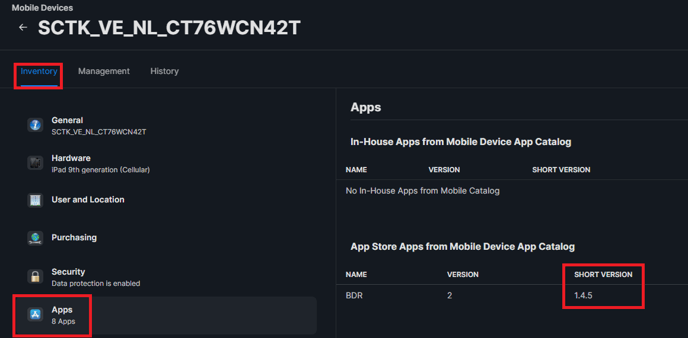
- Go to JAMF
- From the menu, select Devices
- Then, select Search Inventory > All iPads > View
- Search and select the iPad (Hint: you can search by serial number or venue name)
- Under the Inventory tab, select Apps
- Refer to the Short Version.
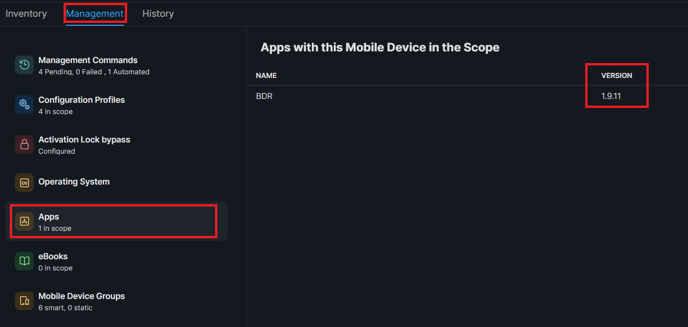
To find out which App version the device should have:
-
- Go to the Management tab
- Click Apps and refer to the app version
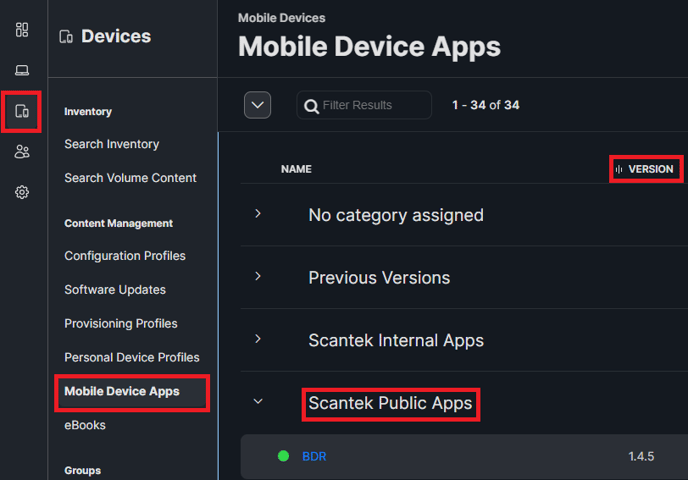
Alternatively,
-
- Go to Devices
- Select Mobile Device Apps
- Under section Scantek Public Apps, refer to column Version
How to find the iOS Version
IMPORTANT
Before updating to a new iOS version, verify its compatibility with the App. If you are unsure, check with the QA team or iOS developers to confirm the correct version that the device should have.
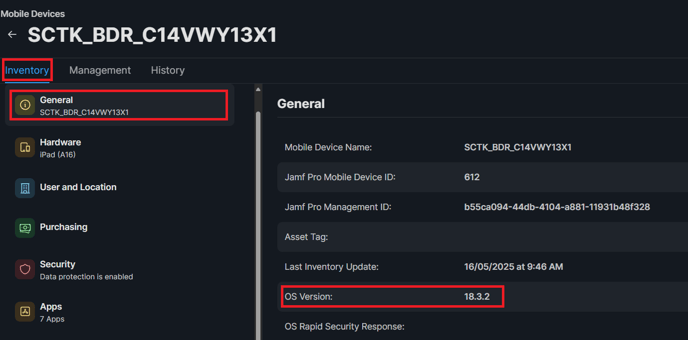
OPTION ONE: Via the App
-
- Go to Settings > General > About
OPTION ONE: Via JAMF
-
- Go to JAMF
- From the menu, select Devices
- Then, select Search Inventory > All iPads > View
- Search and select the iPad (Hint: you can search by serial number or venue name)
- Under the Inventory tab, select