
Content
PART 1 - Create venue accounts and add users
PART 2 - Allocate and Setup an iPad
PART 3 - Configure the iPad with the offline scanning capabilities
IMPORTANT
BDR Fleet must be kept separate from all other inventory.
PART 1 - Create venue accounts and add users.
- Login into the Portal:
- Portal: https://portal.bdr.scantek.cloud/
- Username: your email
- Role: Tenancy Admin
If you are setting up an iPad for a new venue, please ensure it has been approved by LGIRS first.
Refer to Article: BDR: New Licensee
HubSpot: Venue information, such as the and customer relations management.
JAMF: To lock the iPad to a specific venue. Associate the venue’s account ID from the API Portal to the iPad. 
NOTICE
The data captured in HubSpot and JAMF is critical for configuring the iPads and ensuring the data is shown correctly in the BDR Portal.
PART 2 - Allocate and Setup an iPad
If you are setting up an additional iPad or an iPad for a new venue, please refer to one of the following support articles:
PART 3 - Configure the iPad with the offline scanning capabilities
This part must be completed in-house, by Scantek staff.
- Launch the BDR App
- Check which version is the most recent.
- Check the device serial number matches the one assigned to the venue in CRM/HubSpot/JAMF.
- Check the venue name appears correctly
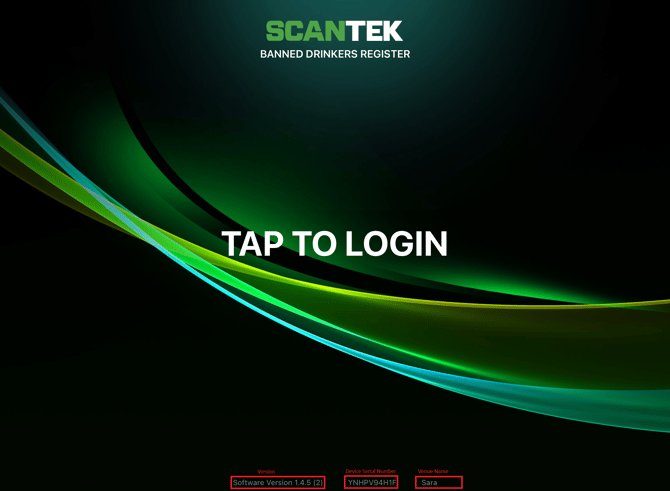
- Login using your BDR credentials
- You'll see a pop-up: "Scantek Setup"
- Tap Setup and allow it to download the configurations (2-5mins process)
-
- Confirm the download is successful
- OPTION A: via the admin Portal
- Refer to Article BDR: can't scan offline (Section Troubleshooting)
- OPTION B: within the App
- Tap the settings cog, next to the venue name.
- select 'App Status'. In the Status screen, ff there are any red crosses, scroll up and select 'Drop tables' and redo the setup (step b).
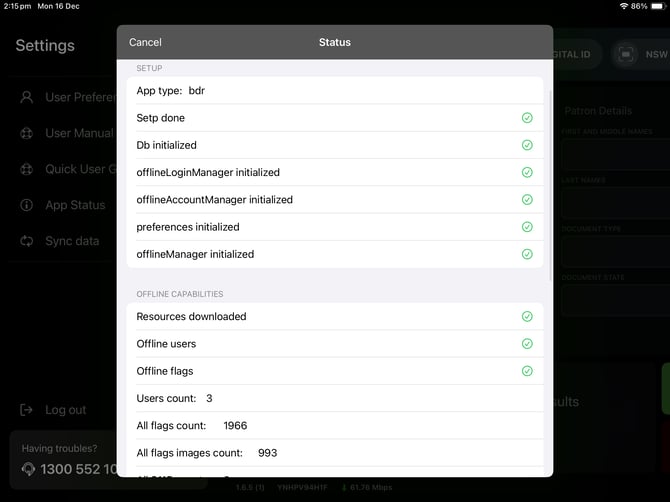
- Ensure the 'Users count:' number matches then number of user accounts in the API portal.
- Ensure the 'All S115 count:' number matches the number of S115 bans on the device. To check, close the Status pop-up, tap the S115 Bans button then the S115 Bans tab. If there are a lot of bans, it's safe to assume that they've synced.
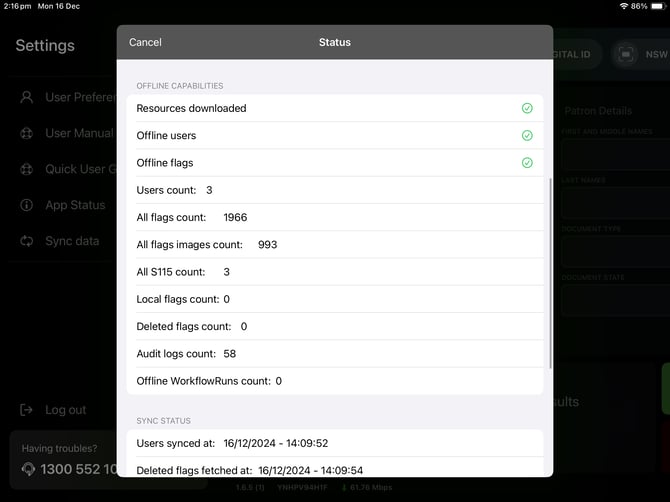
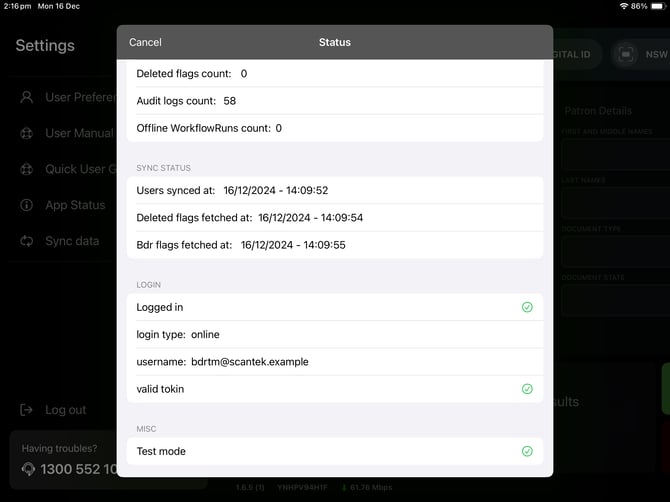
- OPTION A: via the admin Portal
- Confirm the download is successful
PART 4: Other Configurations
-
Remove the emoji keyboard
It has been agreed with the Client that Scantek will remove the emoji keyboard locally on the device.
-
- Unlock the iPad.
- From the home screen, select the 'Settings' app.
- In General, select Keyboard
- Tap Keyboards and select the "Emoji" option
- Select Edit and remove it.
- Check the Auto-Lock time (expected: 15-mins)
- Unlock the iPad.
- From the home screen, select the 'Settings' app.
- Scroll down and tap the 'Display & Brightness' option.
- Find and select 'Auto-Lock'.
- Select 15-minutes from the list.
Troubleshooting | FAQs
Q: Why can't I see the venue name on the login screen or after logging in?
The account ID has not been assigned to the iPad in JAMF.
Q: Can I redo the setup process?
Yes, you can do this one of two ways:
OPTION A: In JAMF, change the department to 'Inventory' and back to 'BDR - End User'
OPTION B: within the BDR App:
-
- From the settings, select App Status,
- Select Drop Tables
- Select Drop all tables (you may have to tap this twice)
- Log out of the app and close the session.
- Redo Step 3.
RELEVANT ARTICLES