
TROUBLESHOOTING GUIDE
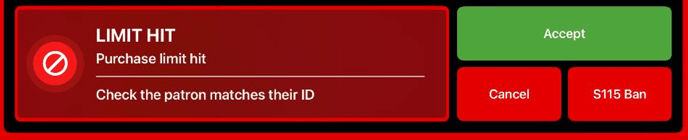
- Confirm the message that the Licensee sees when scanning the ID (refer to images below).
- Confirm that the captured ID information is read correctly, especially
- Full name
- DOB
- ID Number/Licence Number
- Confirm that the Customer has not made a purchase elsewhere that day.
- Yes, a purchase was made. To see the purchases:
- iPad: the Licensee can select 'Accept' and select 'Modify' from the purchase screen.
- Portal: Locate the scan and check for previous scans with a purchase.
- No, a purchase was not made. Confirm this by:
- Portal: Search for previous scans of the Customer. (see below for instructions)
- Yes, a purchase was made. To see the purchases:
TIP
Check for scans whilst on the phone. Discourage the sending of PI via email or SMS.
TAMS Messages the Licensee may see on the iPad (which indicate a previous purchase)

Step-by-Step Troubleshooting
-
Log into the BDR Portal (your credentials > select Account: DLGSC)
-
Got to the Patrons tab and locate the Customer's scan(s)
- Search by the customer name; or filter by Venue and time/date or device.
-
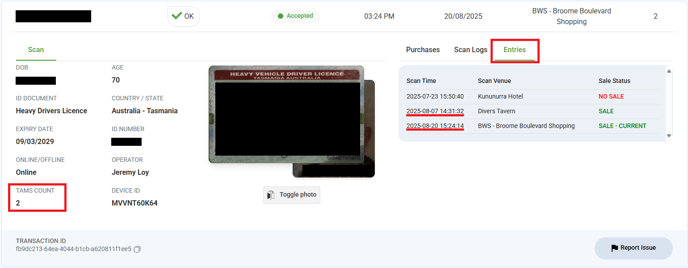
Does the Entries table show previous scans?
-
Yes - click on the scans from that day. It will open the scans side-by-side.
-
No - the customer does not have previous scans from that day.
-
Escalate internally.
-
-
- Do any of the previous scans have TAMS purchases? See 'TAMS COUNT' or the Purchases tab of the scan.
- Yes - the customer has made a purchase earlier that day and the result displayed on the iPad is correct.
- Do the purchased items fall within the allowed purchase limits? If not, escalate internally.
- No - the customer has not made previous purchases.
- Escalate internally.
- Yes - the customer has made a purchase earlier that day and the result displayed on the iPad is correct.
NOTE
The Entries table displays scans where IDs matched on the Name + DOB, or the ID Number.
Important
Before escalating for further investigation, confirm it's the same person and the scans are from the same day.
Raise your findings in the #bdr-channel (slack) and tag the @BDR Dev Team.
RELEVANT ARTICLES