
Step One - Patron asks about their Ban.
This will either come through as:
- A direct email, or
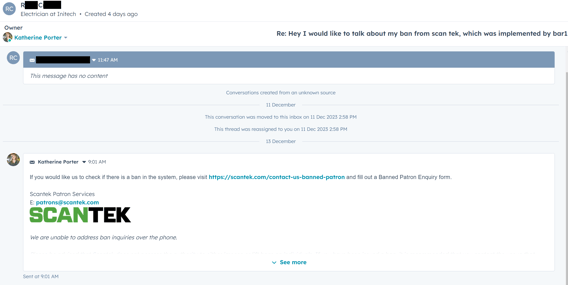
Please use the snippet #please check if I'm banned to reply to this request and close the ticket. This will prompt the patron to submit the ban form. - a Ban Request form:
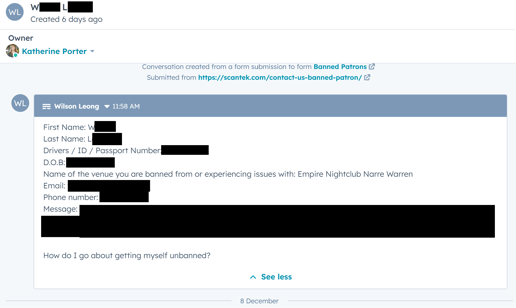
Step Two - Check which Venue they have listed as being banned from
If this is not a venue that you are familiar with, search for them in Hubspot.
This will let you know if they are:
a) a venue using Scantek
b) What type of venue entry system are they using?
If this venue doesn't come up in Hubspot, search for them on Google. This is a potential lead we can add to Hubpsot for the Venue Entry BDMs to follow up.
Step Three - Check against Central Ban Query
1. Head to https://portal.ve.scantek.cloud/ & login for OLGR: https://portal.veqld.scantek.cloud/ & login
2. When prompted for an account & Role Select "Scantek" and "Customer Support"
3. In the menu bar at the top click Ban Query
4. Type in Patron's full name & DOB
5. If a result pops up, press "View Email Text" to provide the snippet to send to the patron.
TODO: Once OLGR Submission 2 is complete update this article to see how IDU bans/OLGR bans are shown.
No Result appears, and It is a non-Scantek Venue.
Use the canned responses #No Ban and #non-Scantek Ban
Step Five - Check against the Venues Portal Account
This process should be redundant now days however may be needed for unusual or tricky cases. This step only works for users with superadmin access only.
- Head to the correct project portal for the venue (Check Hubspot if unsure) and login using your superadmin credentials.
- Head to Bans and search for the banned Patron.
- To view further details on this banned patron, such as the date of birth, press edit.

If a matching result appears, do the following:
Current / Active Ban listed on Portal: use the snippet #Ban Information - Why/When/where and fill in the location, Ran Reason and Ban end date. You must remove the line " Other venues will be notified of this ban until [GLOBALBANDATEEND]." as this information is not available.⚠️ If you find any bans using this method but was not found in step 3 and the details were accurate please report to the Dev team.
Uncommon Scenarios
Patrons knows that they are banned on Venue Entry but are still determining where the ban originates from. - Further Ban Check.
PLEASE SEE TEAM LEAD BEFORE ACTIONING THIS TYPE OF REQUEST
⚠️ This method will not find any patrons who have an official ban from the Queensland Government.
To obtain a copy of the persons ID to scan in Venue Entry, please create a link in the portal using account "Holly+idckr@scantek.com.au".
1. Create a Transaction to send to the patron. Keep the email and phone number details for the transaction as your own.
2. enter the transaction and copy the link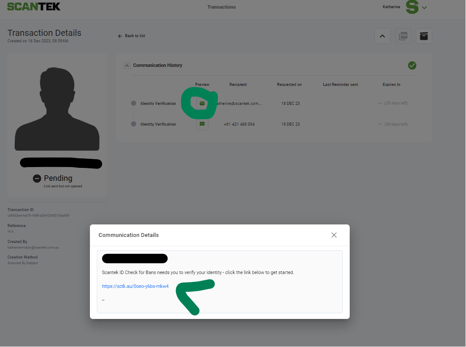
3. use the snippet "Submit ID for Ban Check " and insert the link.
4. Once the person has submitted an ID through the portal, you can then use this to scan it against the respective VE apps. This will give you information as to why the ID is being flagged