
Step One - Create the Ticket and notify the different internal parties.
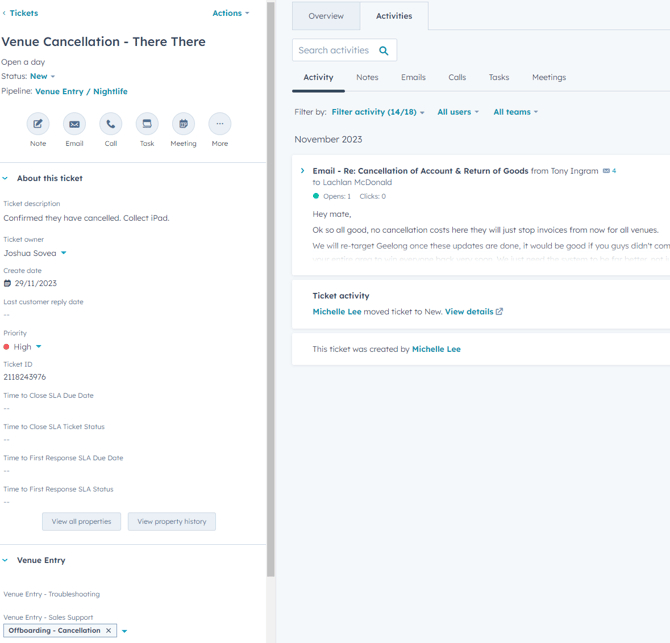
This will either happen one of two ways.
The Venue contacts Customer Service - When a Venue contacts Customer Service directly, please do the following:
- Create a ticket if one still needs to be created.
- Collecting the following information:
- Name of Caller and Phone Number
- Reason of cancellation
- Let the caller know we have recorded their request and passed this to our Business Development Team.
- Create a note in the ticket with the following information and Tag the Accounts Team (@michelle) and the Business Development Team (@tony and @josh)
This allows the business development team to see any issues they can resolve before the Venue confirms they are cancelling and check what fees they may have to pay if they break the contract early.
The Venue contacts Sales or Accounts - If this is the case, you'll notice that the sales or accounts team has reached the Venue and confirmed the cancellation. In this case, the deal in Hubspot will be set to Lost - automatically generating a ticket to collect the gear.
If the deal has been set to Lost, but the gear was never sent out / contract never signed, this will still create a ticket - it's best to check the company to see what communications have gone out to them or if any assets are assigned. If it looks like they were never sent any gear, it is okay to close the ticket.
Step Two - assess what goods the Venue has
Once you've got the go-ahead to proceed with the cancellation from the Sales and Accounts Team, the next step is to work out what the Venue has.
The iPad/s will be listed under Assets in the company, but the Venue will also have:
- Apple 20W USB-C Power Adapter (per iPad)
- Apple USB-C to Lightning Cable (1m) (per iPad)
- Mounting attachment (if supplied)
- Wall mount / Stand / Desktop mount
Use the snippet Cancellation - Venue Entry - 01- get gear packaged as a guide on what information you need to get from the customer. This can be sent in an email, but usually, you will have more luck getting the information over the phone.
If sending in an email, you'll need to delete where it says [QTY] and add in the number that they have.
Similarly, you will have to delete any accessories they do not have. (e.g. there is no point adding a stand if they use wall mounts)
We want to establish where the courier needs to collect the goods and who they should contact if they have issues.
We also need the courier to pack the goods to send back to us. They should ensure that the box is well-padded to avoid damage to the equipment. Once they have packed it, we need to know what the weight of the box is and the dimensions (height, length, width).
For getting the accessories back (e.g.,g stand, adjustable arm, Desktop mounts), they will be handled differently - please see this article on how to handle these:
We are sorry to hear that you are leaving.We can certainly arrange collection of the goods. According to our records, your Venue has the following:Venue Entry iPad System
Could you package up the gear above in a box ready for transit? If you still have the original box the gear came in, please use this.
1. Confirm the collection address is correct: 2. Confirm site contact is correct:Contact: Full name - Contact: Mobile phone number 3. Provide us with the weight and dimensions of the box (if using a different one to what the goods came in) 4. Best day and time frame for collectionWe will arrange for a Thursday between 12 pm and 5 pm if not specified.We'll follow up in a couple of days if we still await your reply. |
Summary:
1. Assess what gear they have and get them to package it up
2. Confirm the collection address (where the courier will collect)
3. Confirm Site Contact (person who will be at the Venue should the courier have issues)
4. Confirm what the weight and dimensions of the box are
5. Confirm the best day and timeframe for the collection of goods
Step Three - Arranging a courier
This step can only be done once you have got all the information from Step Two.
- If the Venue is located in Metro Perth, please arrange a Comet Courier to collect:
- If the Venue is located anywhere else, please raise a return label with StarTrack:
** A task should be set against the ticket for you to monitor the tracking. **
If the Venue failed to be ready for the collection, unfortunately we will have to contact the company again and arrange a new collection.
Step Four - Track the Package & Set Workshop task
Once you know the goods are due to arrive in the office, it is now a good time to do the following:
- Set a task in the Ticket for Mike to evaluate the product on it's return
Example: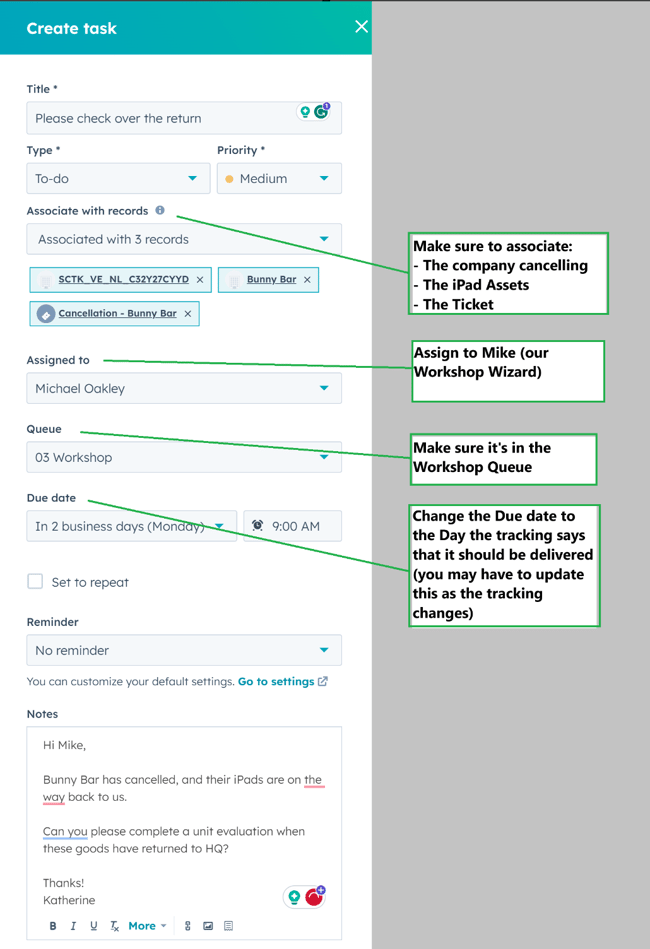
StarTrack: What happens if the goods have not arrived back within a couple of days?
In this case we will need to contact StarTrack to get them to launch an investigation. To do this: head to this article!
Step Five - Goods arrive in the Office
Now that the goods have arrived in the office, please do the following.
- If goods were delivered by StarTrack, please head to the StarTrack website and collect the POD (Proof of Delivery). Instructions on how to do this are here:
- Let the Venue know that we have received the package and that we will be able to confirm that we have received everything within a few working days.
This Snippet can be used. - The Warehouse Team will complete an evaluation of the returned units.
Possible outcomes:
- The Returned Goods are in acceptable condition and all parts are accounted for.
- The Returned Goods are in acceptable condition and parts are missing.
- The Returned Goods are in unacceptable condition and all parts are accounted for.
- The Returned Goods are in unacceptable condition and parts are missing.
- If the Results is A, then please use the following snippet [insert snippet]
- If the results are either b, c or d, it's best to make a note in the ticket @michelle and @tony or @josh asking them how they want to proceed.
While we will want to charge the venue for the missing pieces or damage, if this is a venue that the Business Development Team think they can get back, sometimes we will forgoe the cost.
- Type B: Oncharging / Getback parts - Please use this snippet: Returned - B Condition - Oncharge/Getback
- Type B: We not charging the Customer - Please use this snippet: Returned - B Condition - Goodwill and close the ticket
- Damaged Equipment - Please use this snippet:
- Damaged Equipment & Missing Parts - Please use this snippet:
- Type B: We not charging the Customer - Please use this snippet: and close the ticket
- If the customer is sending back any missing parts, please keep the ticket open until they arrive.
If we are invoicing the customer for the damage parts, the ticket can be reassigned to accounts.
Summary: Work with the warehouse team to find out what the condition of the return is. If things are missing or if the item is damaged, work with the BD team and Accounts to work out what action we will take.
7. iPad department in JAMF should be returned to "Unassigned Inventory", fully charged and stored.