
In JAMF
- Go to JAMF Pro
- Find the device you are setting up
- From the menu, select Devices
- Then select Search Inventory
- Click All iPads
- Select "ALT+V" or click View in the bottom right
- In the search bar, type in the serial number of the iPad, e.g., YNPPV49H1F
- Click on the device name, e.g., "SCTK_VE_NL_YNPPV4H1F"
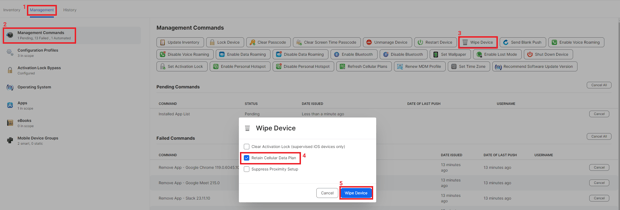
- Select Management
- Select Management Commands
- Click Wipe Device
- Check Retain Cellular Data Plan (IMPORTANT)
- Click Wipe Device
On the iPad Device
- Select the language: English
- Select the Country or Region: Australia
- Quick Start? -> Set Up manually
- Select Network and connect.
It may take a few minutes for the iPad to complete the setup. - Remote Management: Next
It may take a few minutes for the iPad to sync the appropriate configuration profile. The default config profile (Department) is "Venue Entry Inventory"
JAMF Device Profile Configuration
- Go to JAMF Pro
- Find the device you are setting up
- Under Inventory, select User and Location
- Click Edit
- From the Department drop-down, select the appropriate department. E.g., BDR, Venue Entry OLGR
The iPad may take a few minutes to sync the new profile configurations.
When would I need to wipe an iPad?
The right configurations are not loaded to the device.